Posts

Calligram Project

Image
  For my calligram, I wrote a letter to myself in 20 years. I first start that letter off by asking my future self how college went. To correlate the calligram to my letter, I drew the main building of my school’s campus . For the base of the building, I used the rectangle tool to create a rectangular structure . I used the rectangle tool to create the windows of the building too. For the windows I had to duplicate each rectangle so I could use t he type tool on the outline and fill in the shape of text. For the domes of the building, I used the pen tool to create the curves of the domes. I also used the pen tool to create the walls that connected the domes to the building . Most of the piece was done in the font “noteworthy.” I also used the fill tool to add color to my piece to make the artwork easier to read.      Inspiration for Calligram. Letter to myself in 20 years: Caligram letter.docx (sharepoint.com)
Adobe illustrator

  Learn Illustrator in 5 MINUTES! Beginner Tutorial - Bing video   It is interesting how you can use all sorts of shapes in Adobe illustrator. It is like Dreamweaver but inst ead of code you just use your mouse to create lines and shapes . This program looks much similar to Dreamweaver so I am excited to see what I can create.    Illustrator - Tutorial for Beginners in 10 MINUTES! [ 2020 ] - Bing video   I like how some of the drawings don’t get pixilated when you zoom in. There is also a text option where you can put text i n that might come in handy. Adobe illustrator offers different brushes to work with. The brushes might take some getting used to, but I like that they smooth themselves out when you use them.     Adobe Illustrator for Beginners - Sketch to Vector Tutorial - Bing video   I like the inclusion of the lasso tool, that should come in handy. The pen tool sounds a little difficult so I should take the time to master it . It mi...

Code for canvas project

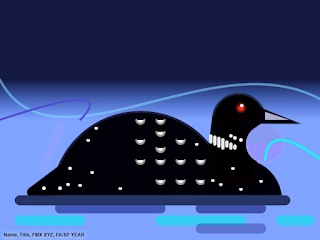
 /// Horizontal Gradient  var gradient2 = context.createLinearGradient(0, 200, 0, 300); gradient2.addColorStop(0, '#131943'); gradient2.addColorStop(1, 'rgba(0,74,255,0.50)'); context.fillStyle = gradient2; context.fillRect(0, 0, 800, 600); ///Quadratic Curve // starting point coordinates var x = 0; var y = 200; // control point 1 coordinates ( magnet ) var cpointX1 = canvas.width / 6; var cpointY1 = canvas.height / 2 + 150; // control point 2 coordinates ( magnet ) var cpointX2 = canvas.width / 1.5; var cpointY2 = canvas.height / 2 - 200;  // ending point coordinates  var x1 = 800; var y1 = 250; context.beginPath(); context.moveTo(x, y); context.bezierCurveTo(cpointX1, cpointY1, cpointX2, cpointY2, x1, y1); context.lineWidth = 6; context.strokeStyle = "rgba(124,207,248,0.61)"; context.lineCap = 'round'  context.stroke(); //context.lineCap = Lines can have one of three cap styles: butt, round, or square // lineCap property must be set before callin...

GrossmanCanvas

Image
       For my project I decided to create a drawing of a loon. A loon is a large waterbird with a round head and a bill. First, I used a gradient for my background, I wanted it to look like blurry water. I used four arches to create the head, body, and chest of the loon. Then I used triangles to create a tail and a beak. I combined two arches to create a circle for the eye and used a combination of arches and circles for the spots on the loon. Lastly, I used lines, quadratic curves, and Bezier curves to form ripples on the water.         The assignment to roughly around six hours to complete. My favorite part of the piece was the color scheme I chose. I like the different shades of blue combined with the black loon and the small use of red for the eye. I also like the how the shape of the loon turned out. Inspiration/ Artist unknown